Listening to Podcasts
With Bosman you listen to podcasts right on your SoundTouch speakers. Find shows from all over the world, follow them and pick up where you left off. The podcast directory comes from Podcast Index, the charts come from Apple.
Turning on podcasts
Podcasts are off at first. Open Settings → Sources → Add Source and choose Podcasts. You’ll then find the Podcasts page under Discover. If the app shows you the New: Podcasts hint, a tap on Turn on podcasts does the same.
Step by step
Browse
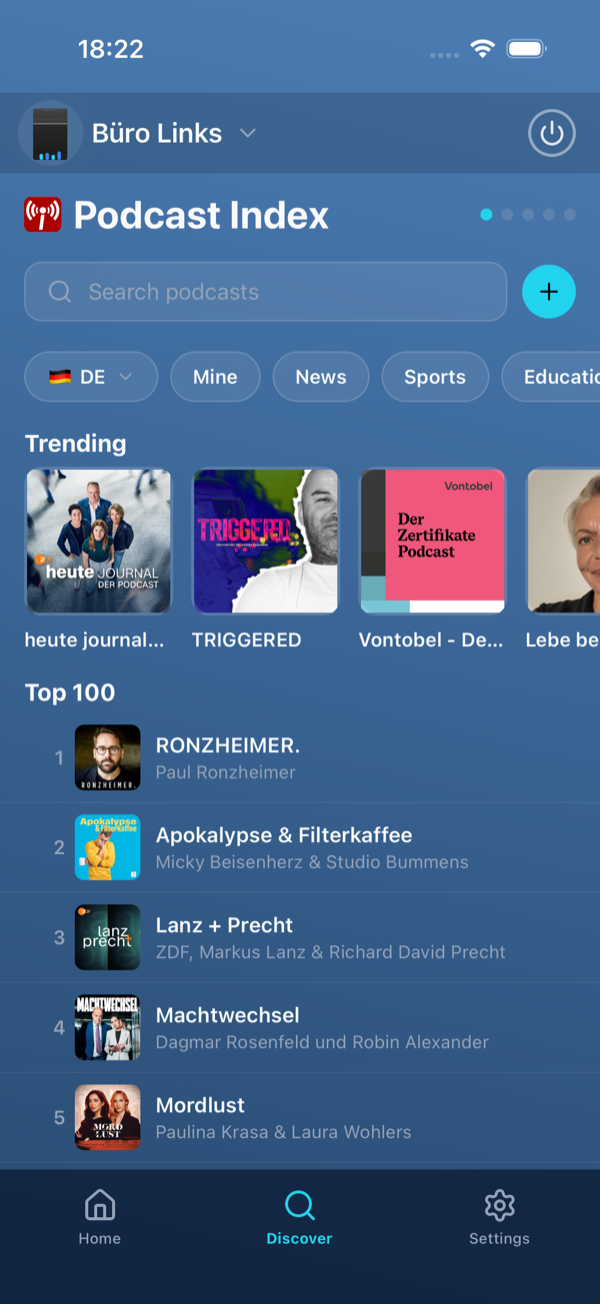
The country is already set to your phone’s region – tap its chip to change it. Next to it you filter by category: Mine, News, Sports, Education, Comedy, Business, History – and all the others under More…. The Trending band lists shows that are especially active right now. Below it is the Top 100 list: Apple’s charts for the chosen country. Search finds shows worldwide. With + you add a show by its feed address.
Follow shows
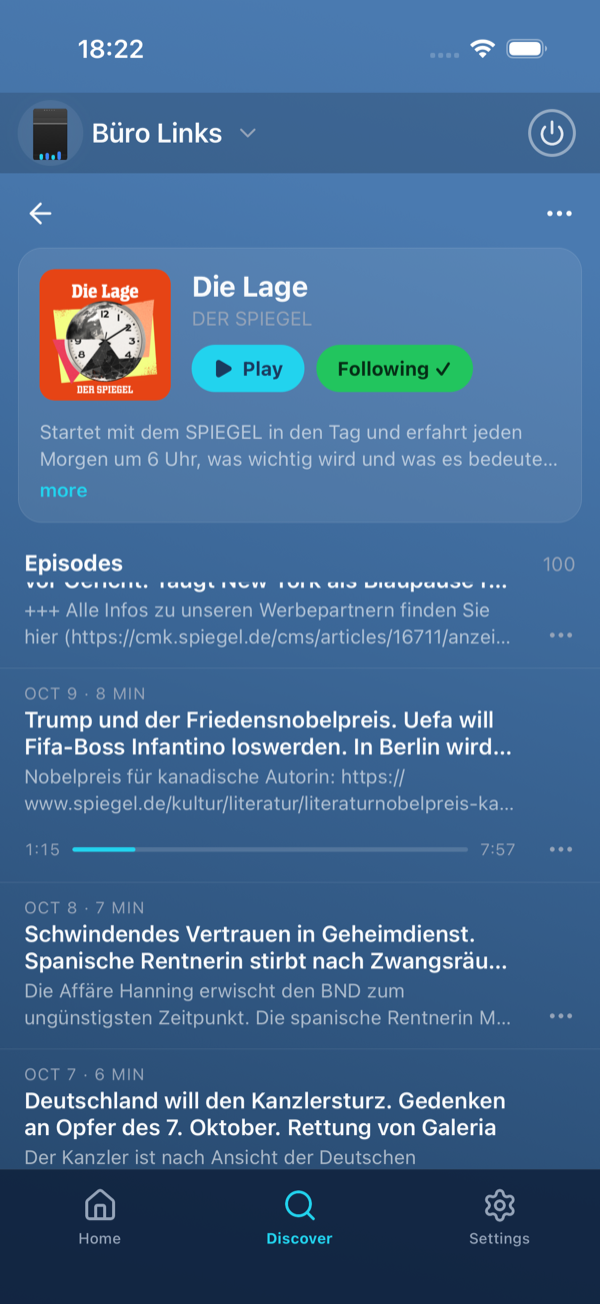
Tap a show. Its page lists all episodes. Tap Follow to follow the show. The Mine chip then shows your shows plus the You might like band: suggestions based on the categories of the shows you follow.
Play an episode
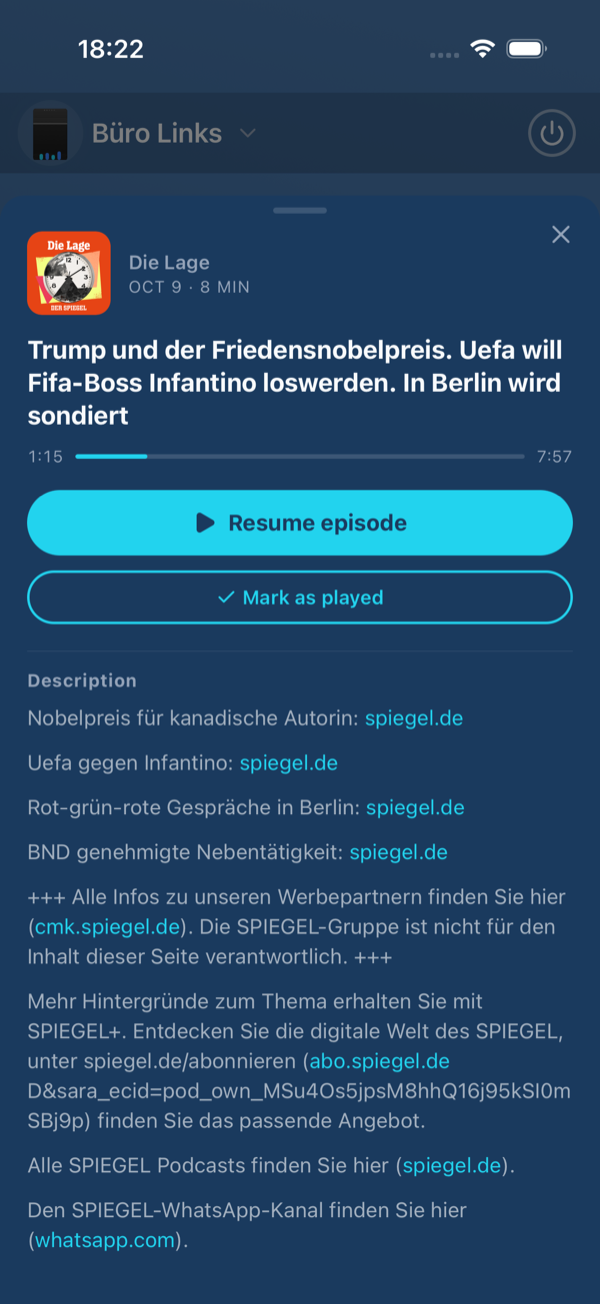
Tap an episode to open its info sheet. Tap Play episode – or Resume episode if you’ve already started it. The episode plays from where you stopped. After that, it moves on to the newer episodes by itself.
New episodes on the Home screen
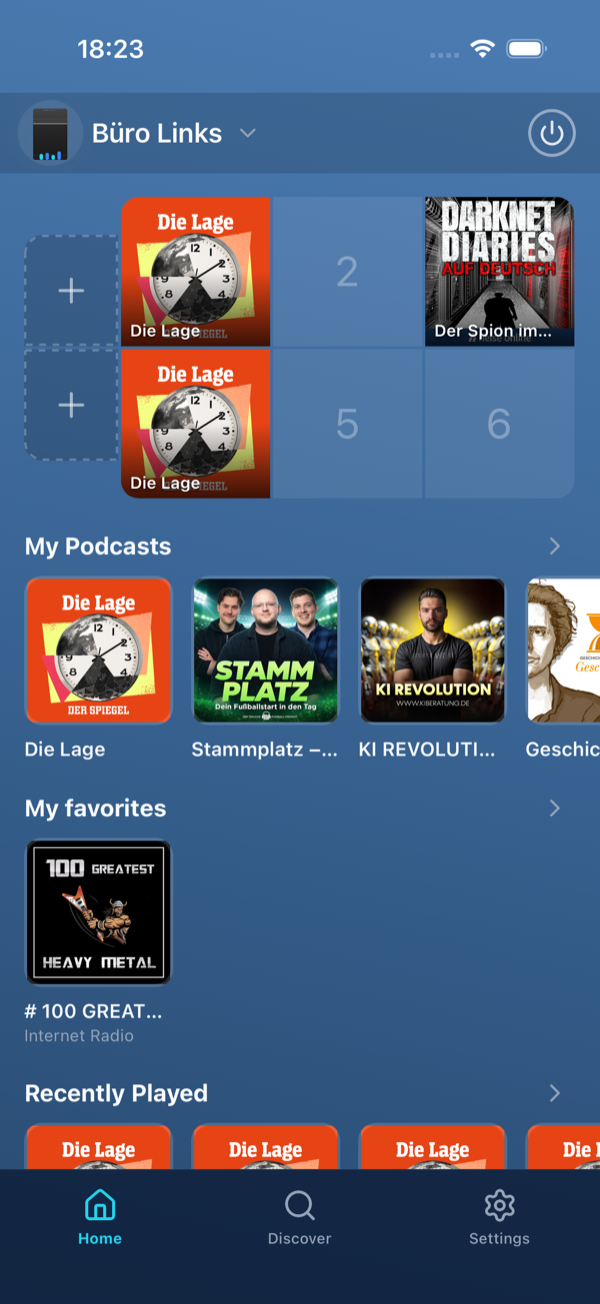
On the Home screen, the My Podcasts band shows the shows you follow. A number on the artwork tells you how many new episodes are waiting.
While listening
- The play button at the top of a show’s page plays the show: it continues where you were – otherwise with the next or the newest episode.
- On the playback bar, the next button jumps to the newer episode. The previous button jumps back to the start of the episode; tap it again for the previous episode.
- Under every episode you’ve started, a bar shows how much you’ve heard and how long the episode is. The episode that’s playing is marked Playing.
Putting a show on a preset
While a show is playing, you can save it to a preset: in the app by long-pressing a preset slot, or on the speaker by holding down a preset button. The preset continues the show where you stopped, then plays the next episodes.